
Download HTTrack Website Copier – Free Windows Site‑Mirroring Tool
Overview
HTTrack Website Copier is a long‑standing, free utility that lets you download an entire website to your local hard drive with just a few clicks. Developed by the open‑source community and maintained by the original HTTrack team, the 64‑bit version for Windows runs on Vista and newer operating systems. The current release, 3.49.2 (published May 16 2024), continues the tradition of offering a secure, reliable way to create offline copies of web pages for research, archiving, or offline browsing.
Unlike traditional browsers that only fetch the page you request, HTTrack parses HTML, follows internal links, and reproduces the directory structure on your computer, preserving images, CSS files, and multimedia assets. This makes it especially handy for developers who need to inspect a site’s static resources, educators building offline lesson libraries, or travelers who want a local copy of a travel guide when internet access is spotty. Because it is free software, there are no hidden fees, no forced upgrades, and the source code is publicly available for anyone who wishes to audit its security.
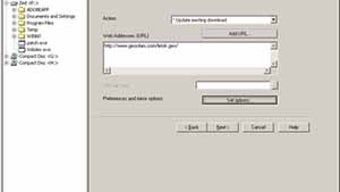
The interface is straightforward: a wizard‑style setup that guides you through the URL, download depth, and filter rules, followed by a progress window that shows real‑time statistics. Whether you’re a power user or a casual internet explorer, HTTrack offers a balance of simplicity and depth that few other site‑mirroring tools match.
Key Features
- Recursive Website Download: Mirrors entire sites, preserving the original directory hierarchy.
- Selective Filtering: Include or exclude file types, domains, and URL patterns with simple wildcard rules.
- Bandwidth Management: Set download speed limits and simultaneous connection counts to avoid overloading the source server.
- Resume Interrupted Downloads: Pick up where you left off after a network glitch or shutdown.
- Multiple Project Support: Run several download projects side‑by‑side, each with its own configuration.
- Command‑Line Interface (CLI): Automate tasks with batch scripts for advanced users.
- Cross‑Platform Roots: Although this review focuses on the Windows 64‑bit build, HTTrack also offers native versions for Linux, macOS, Android, and iOS.
- Multilingual Interface: Available in more than 30 languages, making it accessible worldwide.
- Secure Protocol Support: Works with HTTP, HTTPS, and FTP sites, handling authentication when needed.
- Automatic Index Generation: Creates local index files so you can browse the mirrored site as if you were online.
Installation & Usage Instructions
Getting started with HTTrack on Windows is a breeze. Follow these steps to download, install, and launch your first mirroring project:
- Download the Installer: Visit the official HTTrack website or a trusted software portal and click the “Download” button for the 64‑bit Windows version. The installer is typically named
httrack-3.49.2-setup.exe. - Run the Installer: Double‑click the .exe file. Windows may display a security prompt; confirm that you want to proceed. The wizard will guide you through the standard installation steps—accept the license agreement, choose the installation folder (the default
C:\Program Files\HTTrackworks well), and select any optional shortcuts. - Launch the Application: After installation, start HTTrack via the Start Menu shortcut “HTTrack Website Copier”. The first window you’ll see is the “Welcome” screen, where you can create a new project or open an existing one.
- Create a New Project: Click “Next”, then give your project a name (e.g., “MyOfflineBlog”) and optional category. Choose a base directory where the mirrored files will be saved.
- Enter the URL: Input the website address you wish to copy. You can add multiple URLs if you want to mirror several related sites in one go.
- Configure Options: Click “Set options”. Here you can define download depth (how many link levels to follow), set bandwidth limits, and add filter rules such as
+*.jpg +*.png -ad.doubleclick.net/*to include images but exclude ads. - Start the Mirror: Press “Finish” and then “Start”. HTTrack will begin crawling, showing real‑time statistics: number of files retrieved, total size, and estimated time remaining.
- Browse the Offline Site: Once completed, open the base directory and launch
index.htmlin any web browser. The site will behave exactly as it did online, but all resources are now stored locally. - Update or Resume: To refresh a site later, simply re‑open the project and select “Update existing site”. HTTrack will compare remote files with your local copy and download only the changes.
For power users, the command‑line version (httrack.exe) can be invoked with parameters like httrack "https://example.com" -O "C:\MyMirror" -%v, enabling integration with scheduled tasks or scripts. The official documentation includes a full list of switches for fine‑tuned control.
Compatibility & System Requirements
HTTrack Website Copier (64‑bit) is built specifically for Windows environments, supporting the following operating systems:
- Windows Vista (SP2) and later, including Windows 7, 8, 8.1, 10, and 11.
- Both 32‑bit and 64‑bit architectures are recognized, but the 64‑bit installer takes full advantage of modern memory management and can handle larger projects more efficiently.
Hardware Recommendations: While HTTrack itself is lightweight, the size of the website you intend to mirror determines the required disk space. For typical small‑to‑medium sites (under 2 GB), a modest SSD with at least 10 GB of free space is sufficient. For large archives (e.g., multimedia‑rich portals), consider a larger storage volume and ample RAM (4 GB or more) to keep the crawling process smooth.
Network Considerations: HTTrack respects the robots.txt file by default, but you can override this behavior if you have permission from the site owner. To avoid being flagged as a bot, keep the download speed under 200 KB/s on shared networks and limit concurrent connections to 4 or fewer.
The application also runs on Windows Server editions, making it useful for enterprise environments that need to archive intranet portals or documentation sites for compliance purposes.
Pros and Cons
Advantages
- Completely Free: No licensing fees, no trial period, and fully open‑source.
- Powerful Filtering: Granular include/exclude rules give you total control over what gets downloaded.
- Resume Capability: Interruptions don’t force you to start over; you can resume from the last checkpoint.
- Cross‑Platform Roots: Although this review focuses on Windows, the same engine works on Linux, macOS, Android, and iOS.
- Low System Impact: Runs efficiently even on older hardware, using modest CPU and RAM.
Drawbacks
- Steeper Learning Curve for Advanced Options: New users may find the extensive filter syntax intimidating.
- GUI Looks Dated: The interface has a classic Windows look that may feel outdated compared to modern apps.
- No Built‑In Scheduler: You need to rely on Windows Task Scheduler for automated periodic updates.
- Limited Support for Dynamic Content: Sites heavily reliant on JavaScript/AJAX may not be fully captured.
Frequently Asked Questions
Is HTTrack safe to use for downloading copyrighted material?
HTTrack respects the robots.txt directives of a website and will not download content that the site owner explicitly blocks. However, you are responsible for ensuring that you have permission to copy and store the material. Downloading copyrighted content without authorization may violate local laws.
Can I mirror a password‑protected site?
Yes. In the “Set options” window, you can provide HTTP authentication credentials (username and password). HTTrack will use these details to access restricted pages during the crawl.
How do I limit the download speed to avoid saturating my network?
Under “Set options” → “Limits”, you can specify a maximum transfer rate (e.g., 100 KB/s) and the maximum number of simultaneous connections. This throttling ensures the mirror process coexists politely with other network traffic.
Is there a way to schedule regular updates of a mirrored site?
HTTrack itself does not include a scheduler, but you can create a simple batch file that runs the command‑line version with the “‑%v” (update) switch, then add that script to Windows Task Scheduler to run daily, weekly, or at any interval you choose.
What file types are excluded by default?
By default, HTTrack excludes files that are not linked directly from HTML pages, such as server‑side scripts (e.g., .php, .asp) and certain media streams. You can override these defaults with custom filter rules in the options menu.
Conclusion & Call to Action
HTTrack Website Copier remains one of the most reliable, free tools for creating offline copies of websites on Windows. Its blend of simplicity (wizard‑driven setup) and depth (advanced filters, command‑line automation) makes it suitable for beginners, educators, developers, and power users alike. While the UI may feel a bit dated and dynamic JavaScript sites can pose challenges, the core functionality—secure, resumable, and highly configurable site mirroring—still stands out in a market dominated by paid alternatives. If you need a trustworthy solution to archive reference material, prepare for limited internet access, or simply explore a site’s structure offline, HTTrack is a solid choice.
Ready to try it? Download HTTrack Website Copier now and start building your offline library today. Remember to check the FAQ section for troubleshooting tips, and feel free to share your experience in the comments to help the community grow.







